
Download EasyCapture – Free Screen Capture Tool for Windows, Mac, Android & iOS
Looking for a fast, secure, and feature-rich screen capturing tool? EasyCapture is your go-to solution for capturing anything on your screen—whether it’s a small area, a full desktop, or a scrolling window. This free software delivers professional-grade screenshot capabilities with minimal learning curve.
With intuitive hotkeys, a tabbed interface for managing multiple captures, and built-in editing tools, EasyCapture makes it easy to create clear, annotated, and visually engaging images. Perfect for students, educators, remote workers, and content creators, this tool combines efficiency with creativity. You can apply filters, add arrows, text boxes, clipart, and even highlight key information—all without leaving the app.
While minor bugs exist (like incomplete scrolling capture), the overall experience remains smooth and highly functional. Download EasyCapture today and take control of your screen captures with a free, powerful, and user-friendly tool.
Key Features of EasyCapture – What Makes It Stand Out?
EasyCapture isn’t just another screenshot app—it’s a full-featured screen capture utility packed with tools designed for real-world use. One of its standout features is the multi-mode capture system, allowing users to capture a custom region, the entire screen, a specific window, or even a scrolling window. While the scrolling capture has some limitations (it may not fully scroll in certain apps), the feature still works well for most web pages and documents.
The tabbed interface is a game-changer for multitaskers. Instead of saving every screenshot to a folder, you can keep all your captures open in separate tabs, making it easy to compare, edit, or share them instantly. This is especially useful for teachers creating lesson materials or students compiling research notes.
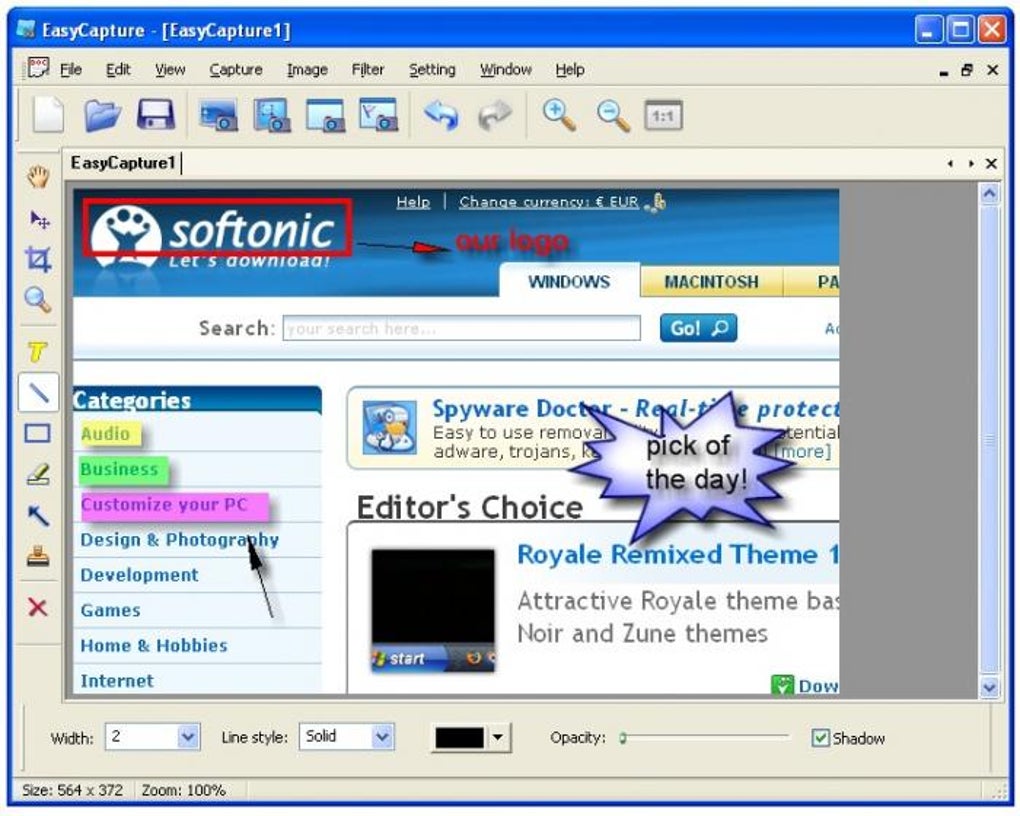
Editing tools are where EasyCapture truly shines. The app includes a smart annotation suite with arrows, rectangles, text fields, and customizable text balloons. You can highlight important details with virtual markers or draw attention to specific areas using color-coded shapes. The clipart library adds a fun, creative touch—perfect for making tutorials or presentations more engaging. Whether you're explaining a software feature or marking up a diagram, these tools help you communicate clearly.
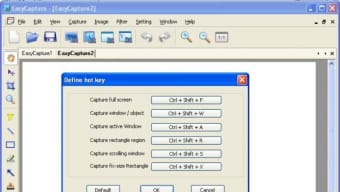
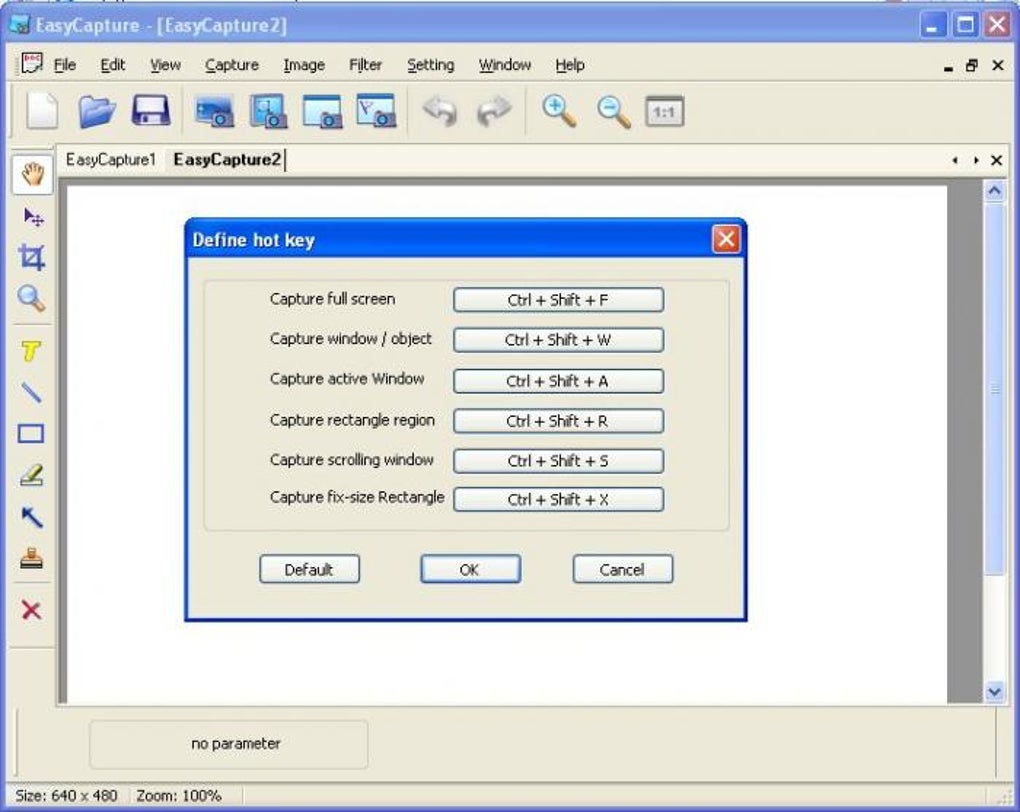
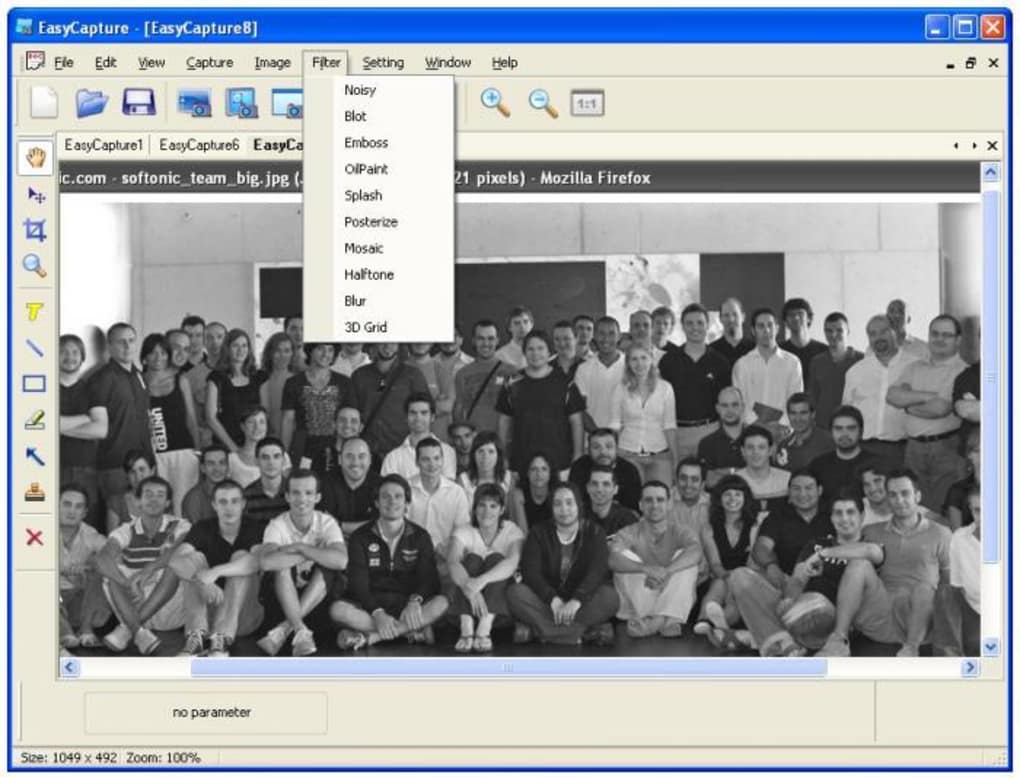
Additionally, the real-time hotkey support lets you capture instantly with customizable keyboard shortcuts. No need to open the app every time—just press a key combo and capture. The filter and effect system offers basic but effective enhancements like blur, grayscale, and brightness adjustment, ideal for quick edits before sharing.
How to Install and Use EasyCapture on Your Devices
Installing EasyCapture is a breeze, whether you're using Windows, Mac, Android, or iOS. For desktop users, visit the official website and download the installer. The setup process is straightforward—just run the file, accept the terms, and follow the on-screen prompts. No complicated configurations are needed, making it ideal for beginners.
Once installed, launch EasyCapture and explore the clean, minimal interface. To capture your screen, click the “Capture” button or use your assigned hotkey (default: Ctrl+Shift+S). Choose your capture mode—full screen, window, region, or scrolling—and click to start. The app will instantly capture your selection and open it in a new tab.
Editing is intuitive. Use the toolbar at the top to add arrows, text, shapes, or clipart. Each tool has customizable settings: adjust color, size, opacity, and font style.
You can also apply filters from the “Effects” menu. When you’re done, click “Save” to export your image in PNG, JPG, or BMP format. Alternatively, use the “Copy to Clipboard” option for quick sharing in emails, chats, or documents.
For mobile users on Android and iOS, download the EasyCapture app from the Google Play Store or Apple App Store. The mobile version supports basic screen capture and editing, though advanced features like scrolling capture are limited. Still, it’s perfect for quick annotations and sharing on the go.
Compatibility & System Requirements
EasyCapture is designed for broad accessibility, supporting the latest versions of Windows (10/11), Mac (macOS 11 Big Sur and above), Android (8.0+), and iOS (14+). This ensures that whether you’re on a work laptop, home desktop, or smartphone, you can capture and edit screens seamlessly.
The software is lightweight, consuming minimal system resources. It runs smoothly even on older machines with 4GB RAM and dual-core processors. No additional software or drivers are required—just the app itself.
For Windows and Mac users, the app integrates with the system clipboard and file explorer, allowing instant access to saved files. On mobile devices, it works with standard sharing options like WhatsApp, email, and cloud storage.
Security is a priority. EasyCapture does not collect personal data or track your activity. All captures remain on your device unless you choose to share them. The app is also regularly updated to fix bugs and improve performance, ensuring a secure and reliable experience.
Pros & Cons of EasyCapture
- Pros: Free to download and use, intuitive interface, multiple capture modes, tabbed editing, built-in annotation tools, hotkey support, lightweight, cross-platform compatibility, regular updates
- Cons: Scrolling capture occasionally fails to capture full content, text editing doesn’t reflect changes in real time, limited filter options compared to advanced editors, no built-in cloud sync
Frequently Asked Questions (FAQ)
- Is EasyCapture really free to use?
- Yes, EasyCapture is completely free to download and use with no hidden fees or premium trials. All core features are available at no cost.
- Can I use EasyCapture on both Windows and Mac?
- Absolutely. EasyCapture is available for both Windows 10/11 and macOS 11 Big Sur or later, ensuring a consistent experience across platforms.
- Does EasyCapture support mobile devices?
- Yes, you can download EasyCapture on Android (8.0+) and iOS (14+) devices from their respective app stores. The mobile version includes basic capture and editing tools.
- Can I edit my screenshots after capturing them?
- Yes, EasyCapture features a built-in editor with tools for adding text, arrows, shapes, clipart, and applying filters. You can make edits directly in the app before saving or sharing.
- Why doesn’t the scrolling capture work properly in some apps?
- Some applications, especially those with dynamic content or custom scrollbars, may not fully support the scrolling capture feature. This is a known limitation, and developers are working on improvements in future updates.
Final Verdict: Why You Should Download EasyCapture Today
EasyCapture delivers a powerful, free, and secure screen capture experience that’s perfect for students, teachers, remote workers, and casual users. While it has minor flaws—like inconsistent scrolling capture and delayed text preview—the benefits far outweigh the drawbacks. With its intuitive interface, robust annotation tools, and cross-platform support, it’s one of the best free screen capture tools available in 2024.
Whether you’re creating study guides, documenting software issues, or designing social media content, EasyCapture helps you capture and communicate your ideas with clarity and creativity. It’s fast, reliable, and constantly improved through regular updates.
Download EasyCapture now and take your screen capturing to the next level—no cost, no hassle, just powerful results.







